
My 2026 blueprint for vibe coding a website in a weekend, or, The Canva first rule
Why I scrapped my first draft and started over with Canva: The human-in-the-loop strategy for directing AI instead of just prompting it.


Almost a year ago, I wrote a beginner’s guide to vibe coding. I’d just figured out that building a real website without knowing how to code was possible, and I wanted to tell you about it.
If you haven’t heard the term: vibe coding is building software by describing what you want in plain language instead of writing code yourself. You tell the AI what you’re trying to make, it builds it, you tell it what’s wrong, it fixes it. No coding knowledge required.
Last week, I launched AILiteracyGuide.com, a full site with a curriculum, a quiz, a parents’ guide, and a working RSS feed. The process taught me a ton of things I couldn’t have put in last year’s guide.
The vibe coding barrier is now genuinely lower than it was a year ago. Here’s what changed and what didn’t, and how I created the website.
I started with the wrong tool
Last year I recommended Lovable as the place to start. It still works for getting something on screen fast. Over the past year I used it to build some cool things: AI Chronicle Explorer, a Tarot card site with cards I designed, and a tool to analyze my newsletter stats.
But I felt like I was running into a ceiling. All my sites looked the same and I could vibe code for free, so I cancelled my subscription. When Lovable offered free credits on International Women’s Day, I took another run at it with an AI literacy project I’d been trying to pull together for months.
I opened Lovable, described what I wanted, and it generated a site, which worked. But the layout felt generic, the visual choices weren’t mine, and I found myself spending a lot of energy reacting to what AI decided instead of directing it toward what I wanted.
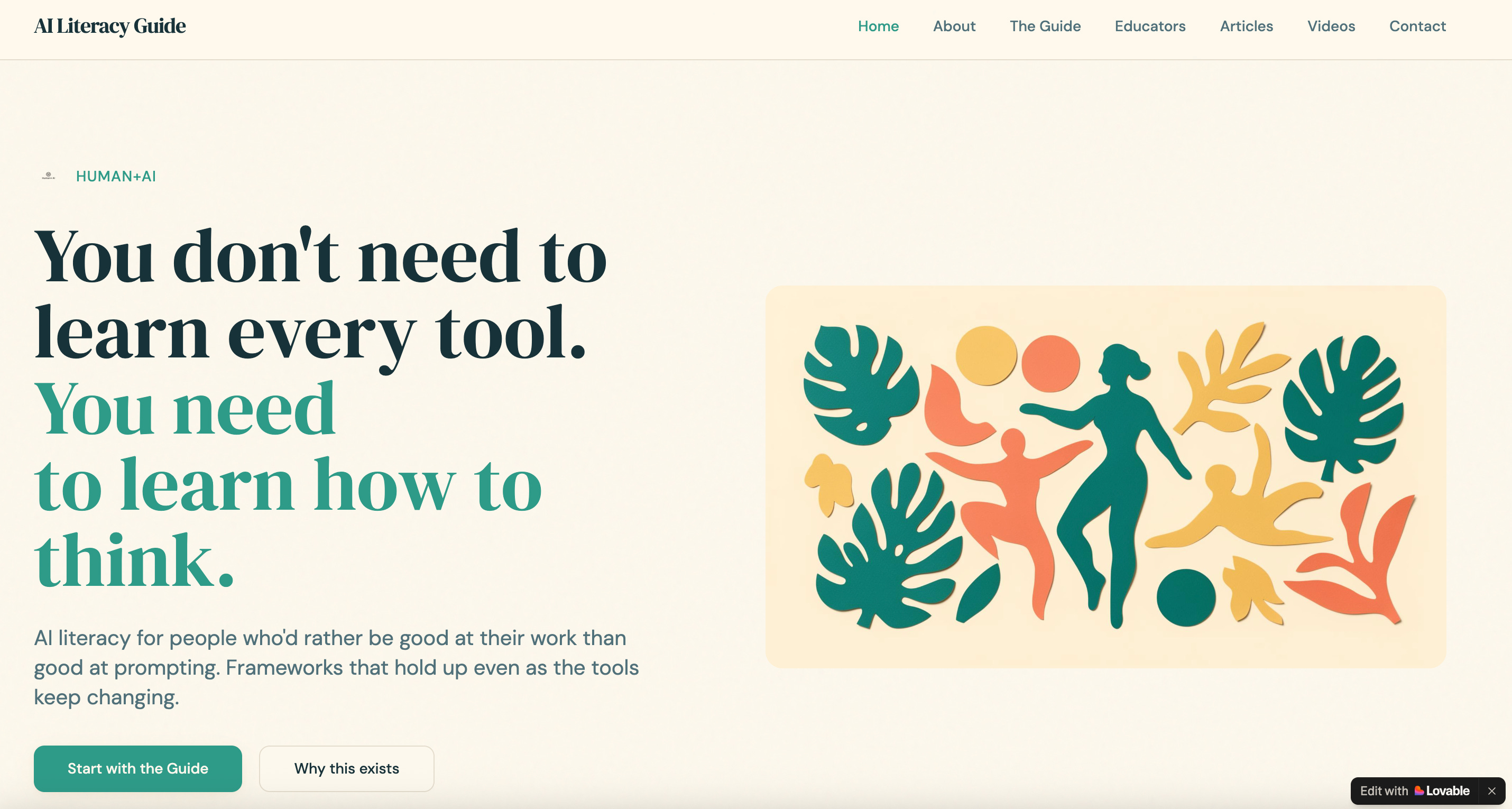
When you go straight to a build, describing your site in words, AI fills in every visual gap. So the AI tool makes design calls for you, and you spend hours trying to course-correct.
I scrapped the Lovable draft.
The step that fixed it: Canva first
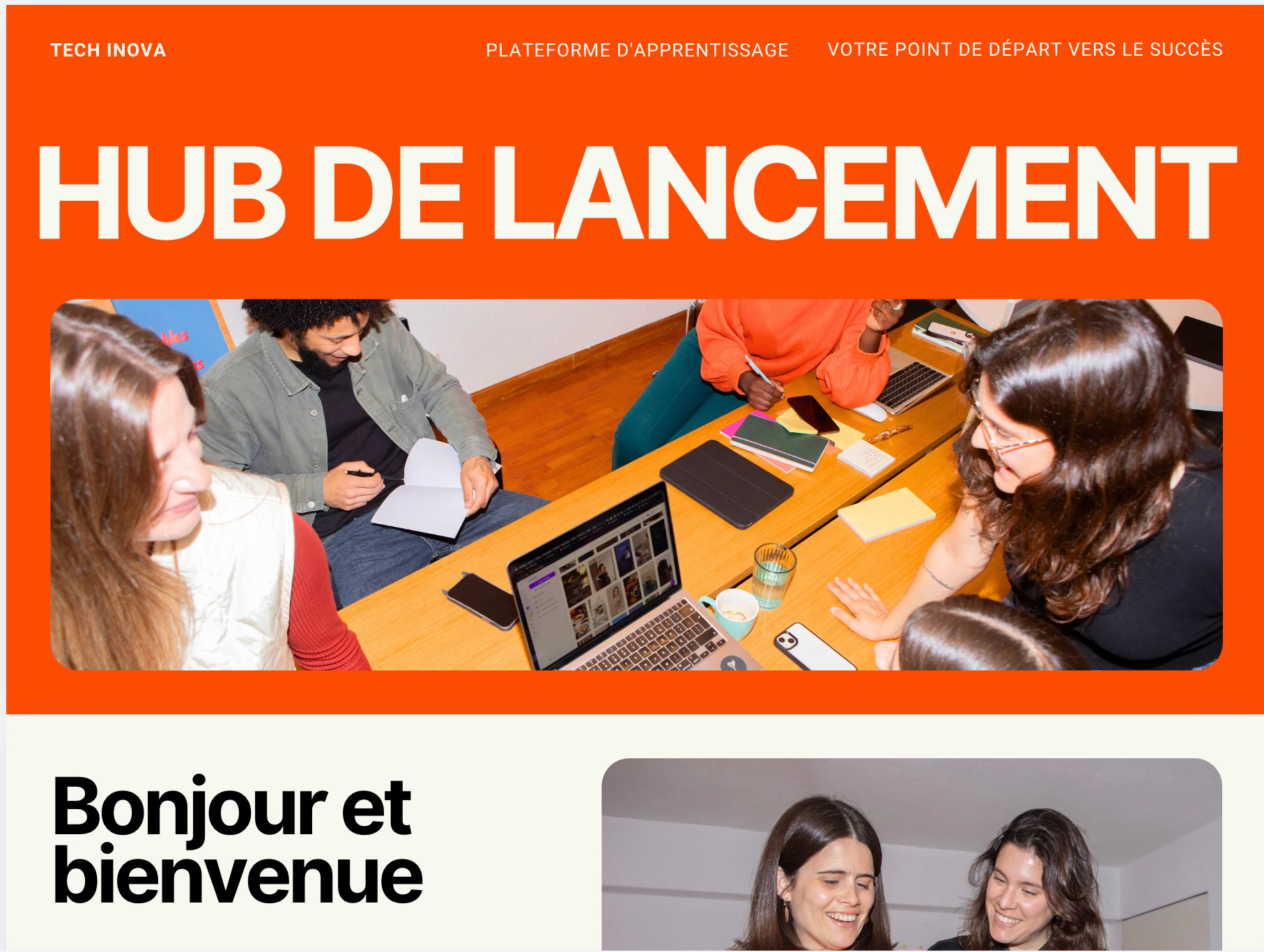
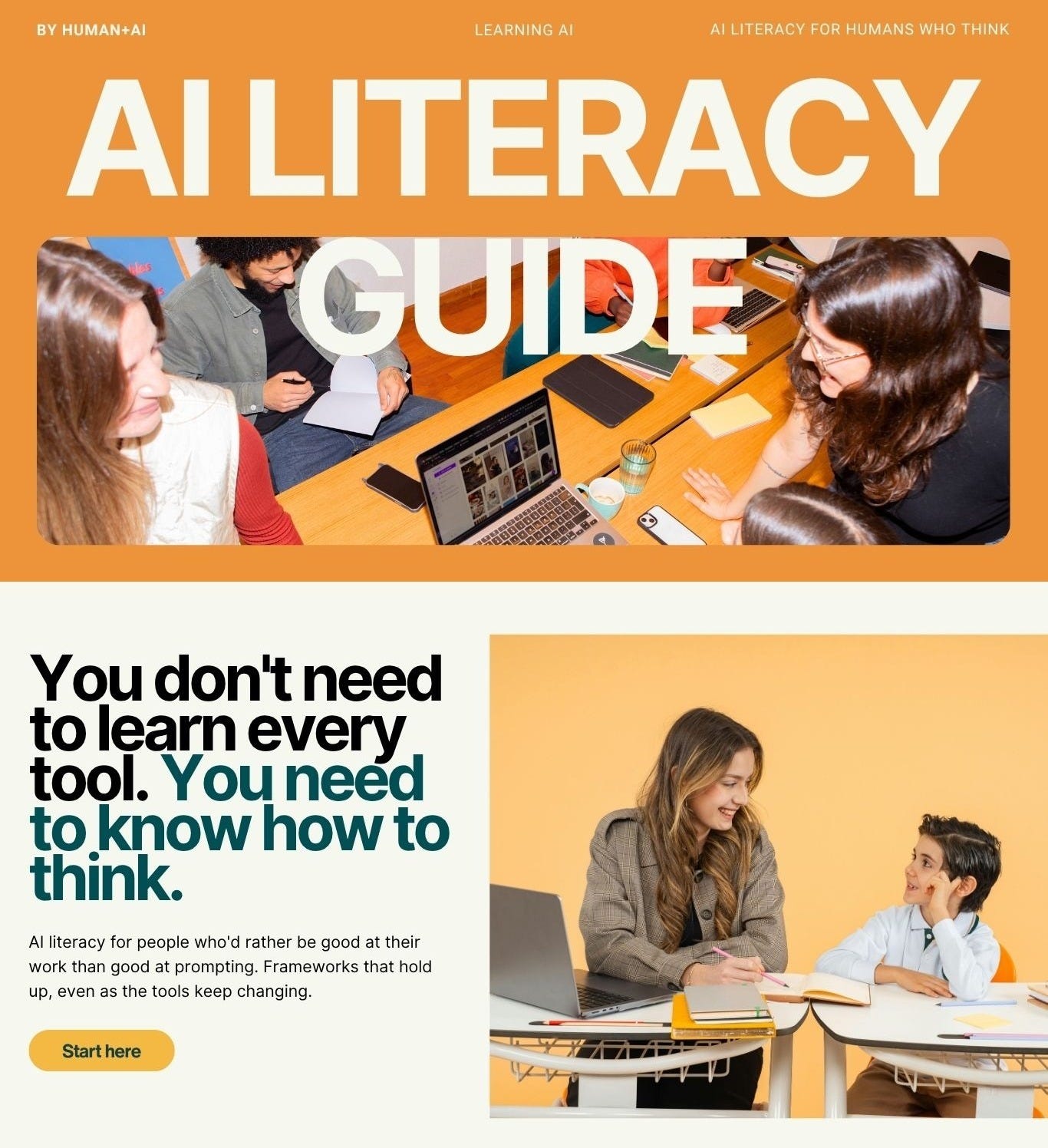
Before touching a building tool again, I opened Canva and mocked up what I wanted the site to look like. Canva is an AI design tool. You can move elements around and try different layouts without coding.
I found a website template for company onboarding that included a learning path structure. It was close enough to what I had in mind that I could work with it.
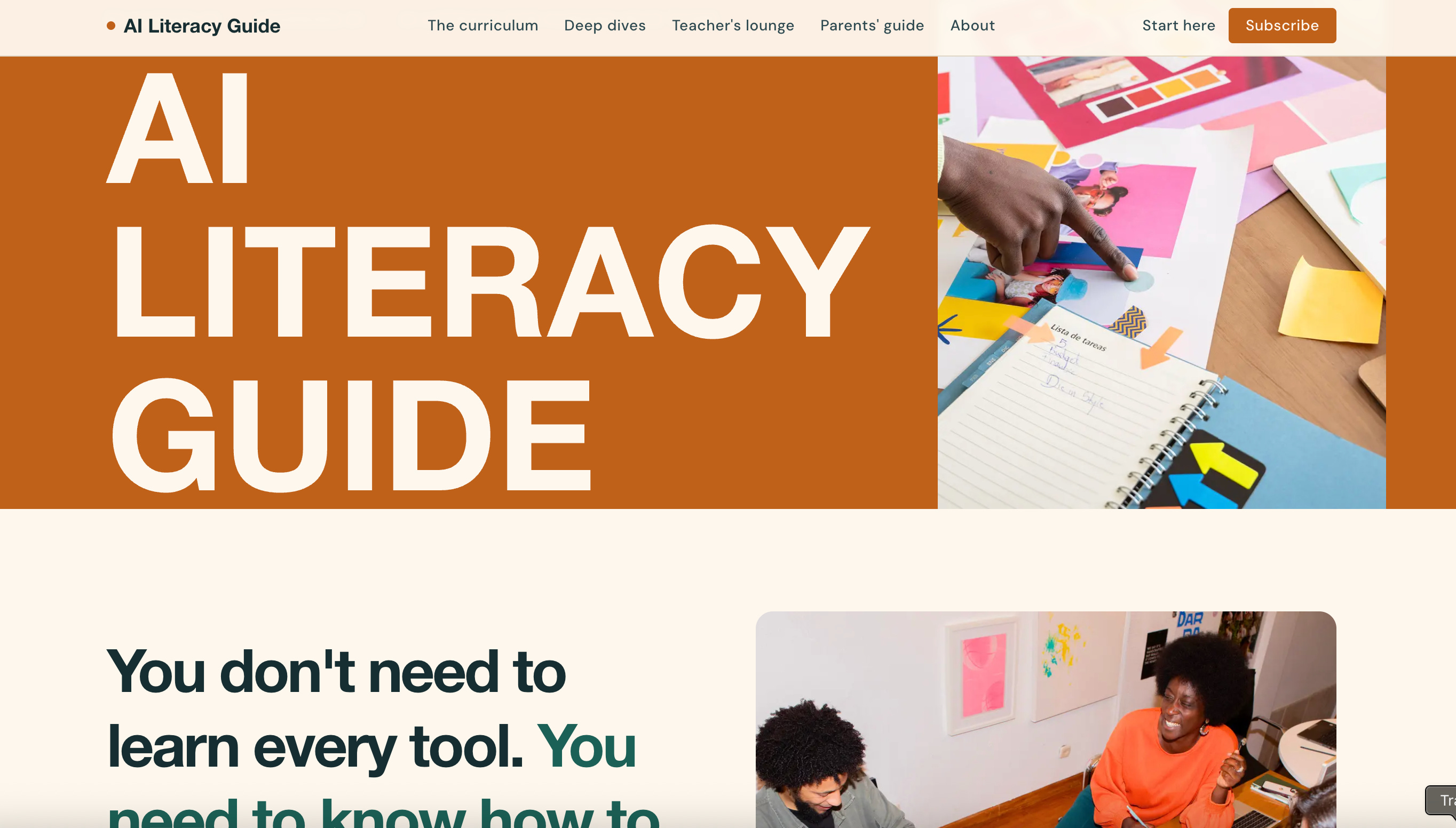
When I went back to building with design decisions made, I was directing rather than reacting. The gap between what the AI built and what I had in mind collapsed because I had something specific in mind.
If I were starting over today, I’d treat the Canva step as non-negotiable, and I’d do it before opening a builder.
This is the (Canva Pro) template I used.
Claude Code for everything after
Once I had my visual reference as a foundation, I needed more precision than Lovable’s interface is built for: specific fixes, structural changes, things that required getting closer to the mechanics of the site without me having to understand those mechanics myself. That’s the ceiling I mentioned.
That’s where Claude Code came in. You can describe what’s wrong, explain what you expect, and it figures out the fix. You don’t need to know what the underlying code is, but you do need to be able to describe the problem.
I used Claude Code to fix things Lovable couldn’t quite get right, to sort out why my updates weren’t showing up on the live site, and to refine my quiz logic until it behaved the way I intended.
What’s easier in 2026
The tools are better at catching their own errors before they become your problem. Claude Code is good at explaining what went wrong in plain language. A year ago I was decoding error messages. Now I feel like I’m having a conversation about a problem, and the conversation usually goes somewhere useful.
Prompting gets easier with practice. Describing what you want precisely enough for an AI to act on it is a skill, and it compounds. The more you do it, the better your descriptions get, and the less back-and-forth you need.
What still needs you
The quiz on AILiteracyGuide.com had a usability problem the AI didn’t catch. The first version showed a score of 2/10 as the first thing you saw after the quiz, followed by a row of red marks for every wrong answer. The text underneath was encouraging, but the visual experience wasn’t. Technically it was working exactly as designed. In practice, it felt harsh.
I redesigned it so the user’s result label comes first, the score is smaller and secondary, and missed questions are framed as areas to explore rather than failures. Same information, different feeling. (This is called content design, and it’s an important part of making apps and websites!)
The editorial layer is still yours. The AI builds what you describe. It doesn’t know anticipate how something will feel to a person encountering it for the first time. That’s where your judgement comes in.
Do it yourself: a step-by-step guide
Before you start: This space is moving fast. Google launched a free AI design tool called Stitch on March 18, a few days after I launched AILiteracyGuide.com, resulting in Figma’s stock dropping 12%. The tools I’m recommending are the ones that worked for me. In six months, the answer could be different.
What it costs
The four tools I used have free tiers that are enough to build and launch a first project, but Claude Code requires a Pro account.
For a first project, you can get to a live site for nothing. Paid tiers become useful once you’re iterating seriously. I pay for Claude Pro and Canva Pro.
Step 1: Set up your domain
I bought the domain for AILiteracyGuide.com before I started, because I wanted the domain name to be reflected in the design. I used Cloudflare, but there are a lot of ways to buy a domain. Find one you’re comfortable with.
I had to turn off Cloudflare’s default traffic proxying (look for the orange cloud icon and switch it to grey, “DNS only”) so Vercel could handle my security certificate properly.
I learned all this by having a conversation for Claude, so don’t let the tech stuff intimidate you!
Step 2: Mock up your layout in Canva before you build anything
Find a Canva template (there are lots of free ones) that’s structurally close to what you have in mind. It doesn’t need to match your content, just your layout logic. Ask yourself these questions:
What’s on the homepage?
Where does navigation go?
What does each page contain?
Make those decisions before you open a builder. Thirty minutes of planning will save you hours of corrective prompting later. Use AI to help you.
Step 3: Build your first draft in Claude Code (or Lovable or Cursor or…)
Go to Claude Code and describe what you want to build. Be specific about purpose and tone of the site, and use your Canva mockup as a guide for structure. I made the mock up and copied the code of the page right into Claude. Claude then generated a working site. It wasn’t be perfect, but it was a great starting point.

Step 4: Get your code onto GitHub
I signed up for a free GitHub account. Claude talked me through everything. GitHub is where your code lives, and you need it so your site can automatically update when you make changes.
A few things I ran into: GitHub no longer accepts passwords, so you’ll need something called a Personal Access Token. Here’s how to get one:
Settings →
Developer settings →
Personal access tokens
The email address on your account needs to match the one attached to your code commits, or the deployment platform will block you. Before your first upload, ask Claude to create a file called .gitignore , which tells GitHub to skip a large auto-generated folder called node_modules that it will otherwise reject.
Step 5: Connect to Vercel
GitHub stores and tracks your code, while Vercel puts that code on the internet and keeps it running smoothly. In other words, Vercel is the platform that serves your site to the world.
Go to vercel.com, connect your GitHub account, point it at your project, and deploy. From that point, every change you make updates your live site automatically within about 90 seconds.
Step 6: Expect things to break, and describe them clearly when they do
Things will break. The feedback that works is specific: “this answer is too easy to guess” will get you somewhere; “this doesn’t feel right” won’t. I pasted my own content document into Claude and asked it to use it verbatim. If something isn’t working, describe what you expected to happen and what happened instead. Claude will diagnose it.
And that’s how I did it! It sounds way harder than it is, and if you’re using Claude code (or another builder), chat with it and ask what to do.
Vibe coding troubleshooting FAQ
My Vercel site isn’t updating after I make changes. Why?
The most common cause is a silent build failure. Go to your Vercel dashboard and check the deployment log. If the most recent deployment shows an error, your live site is still running the previous version. Ask Claude Code to run the build locally to find the error. Nine times out of ten it’s a code issue in a file you’ve never opened.
My first GitHub push failed. What happened?
GitHub stopped accepting account passwords for code uploads in 2021. You need a Personal Access Token instead. Go to Settings → Developer settings → Personal access tokens → Generate new token, save it somewhere safe, and use it in place of your password when prompted.
Claude Code keeps changing things I didn’t ask it to change. How do I stop this?
Be more specific about scope in your prompt. Instead of “fix the quiz,” try “fix only the scoring display on the quiz results page, don’t change anything else.” The more precisely you define the boundary, the more contained the edit.
AILiteracyGuide.com is a free resource built for anyone navigating AI without a technical background. I’d love your feedback so I can make it as accessible as possible. Leave a comment or reply to this email. I read every one!
Saving this for some deep diving when I have some space.
love this idea and Canva - it's the one subscription I happily pay for